How to restrict AWS environments using AWS Policies and IAM Roles?
Cloud computing has revolutionized the way organizations store, manage and process their data. However, in order to mitigate security risks such as unauthorized access, data breaches, and other security threats it is crucial to implement strong security measures.
AWS policies and IAM (Identity and Access Management) roles are two of the most powerful tools that organizations can use to secure their cloud environments.
To restrict an AWS environment you must control the access in AWS by creating various types of policies and need to attach them to IAM identities or AWS resources.
In this blog post, we will discuss in detail what are AWS policies and IAM roles, their benefits, and how to set them up to restrict access to your cloud resources.
Your read summarized:
1.What are AWS Policies?
- Types of Policies
- Sample AWS Policy 2.What is IAM?
- benefits of using IAM: 3.AWS Usage Policies:
- Sample AWS Usage Policy:
- How to apply the usage policy? 4.How to apply AWS policies & IAM Roles in the CloudLabs Portal to restrict the environment? 5.Conclusion
What are AWS Policies?
AWS policies are objects that define permissions for entities or resources when associated with them. When an IAM principal, such as a user, submits a request, AWS analyses these policies. The decision to approve or reject a request is based on the permissions outlined in the policies, which are commonly stored as JSON files in AWS.
Types of Policies:
- Identity-Based Policies
- Resource Based Policies
Sample AWS Policy:
https://spektra-bucket.s3.us-west-2.amazonaws.com/AWS_EC2_Policy_NEW.json
What is IAM?
AWS Identity and Access Management (IAM) is a web service that enables secure management of access to AWS resources. It allows for the management of authentication (signing in) and authorization (permissions) for resources, determining who has access to them.
Benefits of using IAM:
- Shared access to your AWS account
- Granular permissions
- Secure access to AWS resources for applications that run on Amazon EC2
- Identity federation
- PCI DSS Compliance
- Integrated with many AWS services
- Eventually Consistent
- Free to use
AWS Usage Policies:
The usage policy revolves around the following AWS resources:
- EC2 (Elastic compute cloud)
- RDS (Relational Database Service)
- ECS (Elastic Container Service)
For Example:
You prepared a policy in which the allowed value for EC2 is set to 20 vCPU cores. Now we have two users – User01 and User02 performing the same lab. User01 creates an EC2 instance that uses 4 vCPU cores and User02 creates an EC2 which uses 24 cores.
Here, for both users we will have two different cases: - Case 1: User01 with 4 cores falls under the allowed value and will not violate the usage policy.
- Case 2: User02 with 24 cores exceeds the allowed value resulting in violating the usage policy.
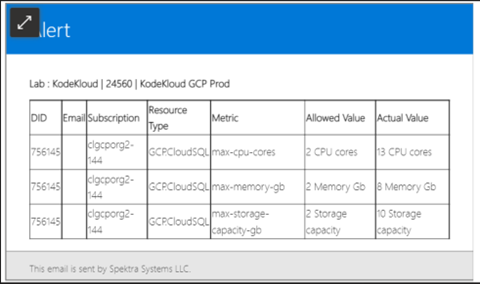
- Once the policy is violated, you will get alerted via email.
- To receive the alert emails, a person/team can provide their email address while setting up the Lab.
Sample AWS Usage Policy:
https://spektra-bucket.s3-us-west-2.amazonaws.com/AWS-UsagePolicy.json Sample Alert:
How to apply the usage policy to the CloudLabs portal?
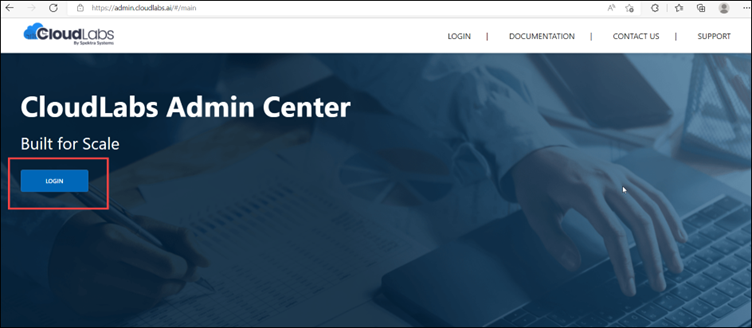
The usage policy can be applied while adding the CloudLabs Template to the CloudLabs portal with the following steps: Step 1: Open the admin.cloudlabs.ai in your browser and click on the Login button.
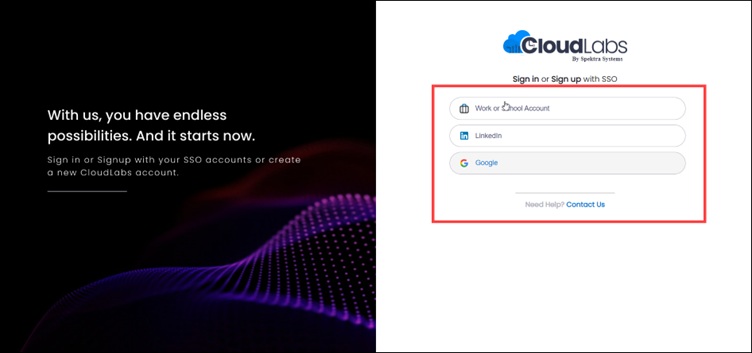
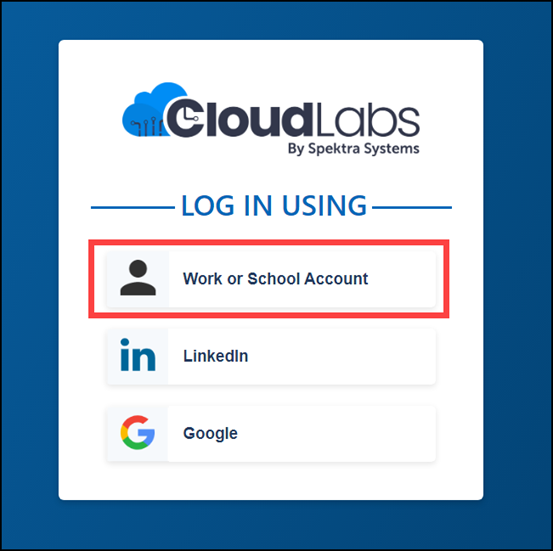
Step 2: Login with Work or School Account by clicking on the button.
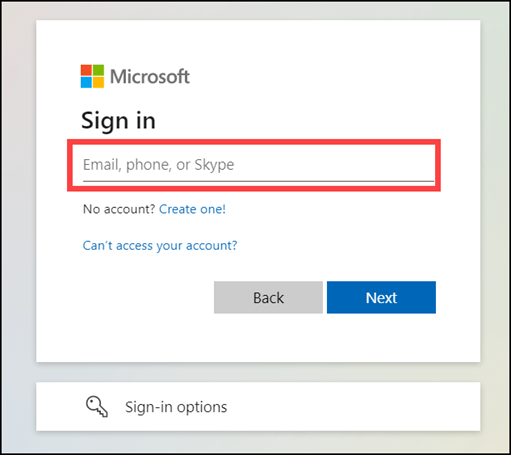
Step 3: When you click on Work or School Account button you will need to fill in your Login Credentials and then click on the Next button to proceed.
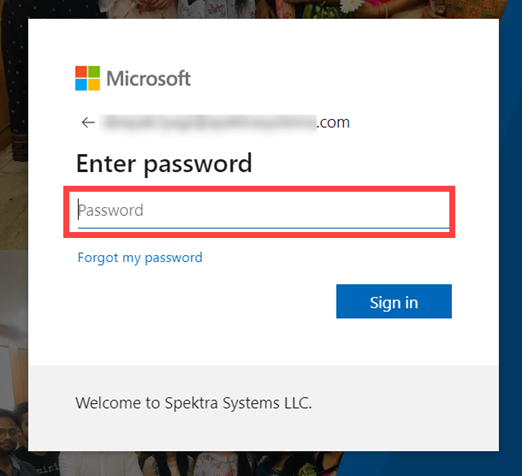
Step 4: Enter your Password and then click on Sign in after providing your password in the field.

Upon successful login, you will be redirected to CloudLabs Portal Homepage.
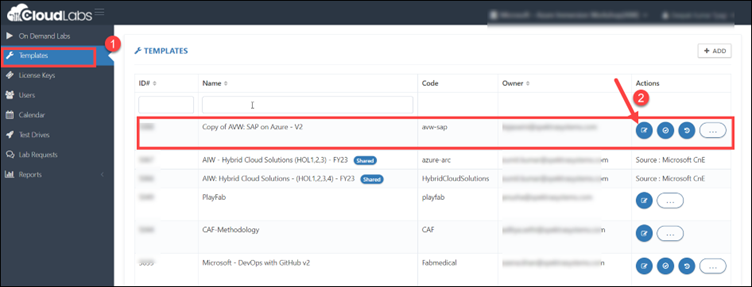
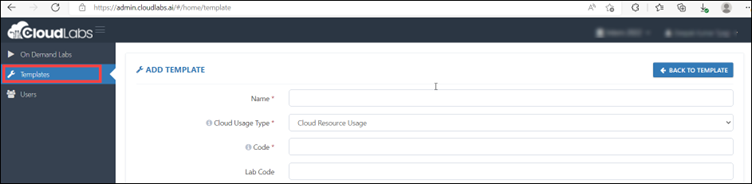
Step 5: Now for adding the CloudLabs Template click on Templates.
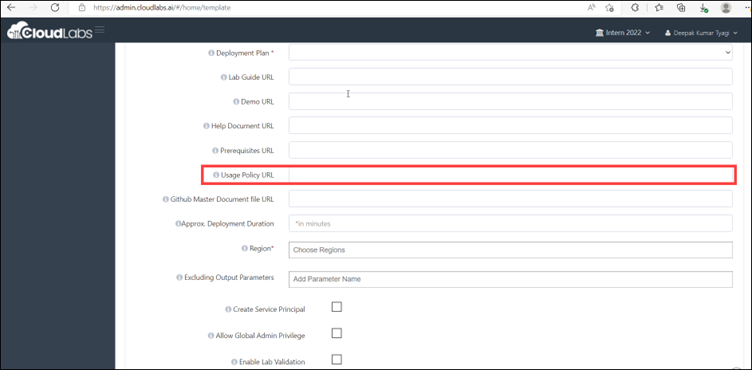
Step 6: Navigate to the template dashboard, scroll down, and then fill in the option of the Usage Policy URL tab. You need to add the URL of the usage policy that you have created.
Then click on Submit and it will be saved.
How to apply AWS policies & IAM Roles in the CloudLabs Portal to restrict the environment?
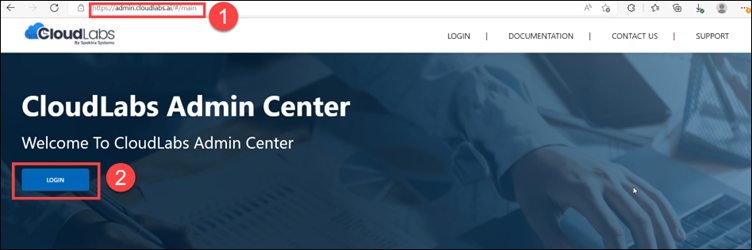
Assigning roles to users and groups is necessary to grant access to a specific scope. By utilizing template permissions, you can manage access to AWS resources, specify the actions that can be taken with them, and determine which areas can be accessed by users and groups. Assigning permissions on CloudLabs Template: Step 1: Policy should be handy before moving to the CloudLabs portal to apply. Step 2: Navigate to https://admin.cloudlabs.ai/ and then click on Login.
Step 3: When prompted, select any of the supported login options.
Refer the following document for more details about login options (Access CloudLabs Admin Center | CloudLabs Documentation)
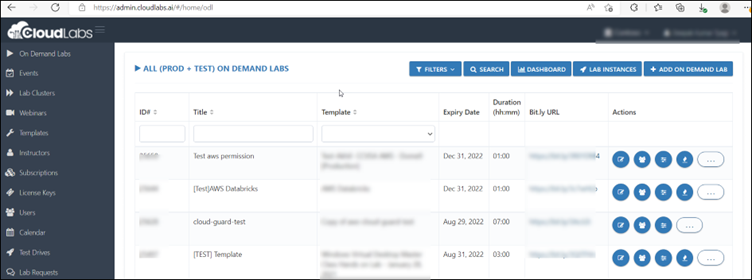
Step 4: After a successful login, click on Templates (1). Select the template for which you want to configure the policy and click on the edit button located under the Actions Pane of the respective template.
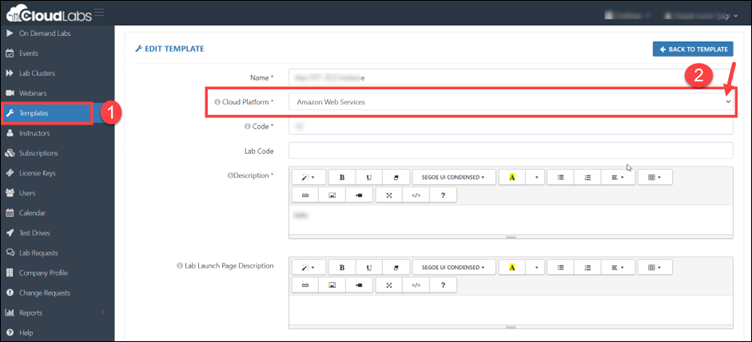
Step 5: Make sure you are using Amazon Web Services as your cloud platform.
Step 6: After clicking on the edit button, you will be on the Edit Template page. Scroll down and look for ADD TEMPLATE PERMISSIONS. Then click on +ADD to add the policies.
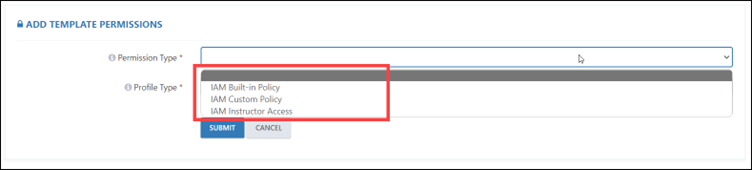
Step 7: After clicking on the +ADD button, you will see three different types of IAM policies.
- IAM Built-in Policy:
An IAM Built-in Policy refers to a standalone policy created and managed by AWS, which means it has its own Amazon Resource Name (ARN) that includes the policy name. These policies are self-contained and managed by AWS. For example, arn:aws:iam::aws:policy/IAMReadOnlyAccess is an AWS-managed policy. These policies are designed to provide permissions for various common use cases. - IAM Custom Policy:
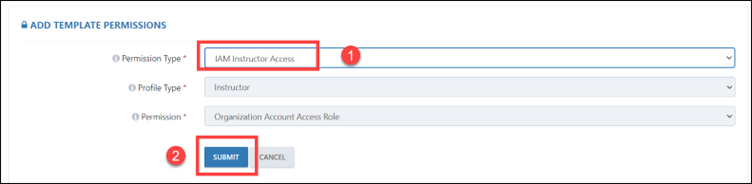
Custom-managed policies are policies that can be independently managed within the AWS account. They can be created using the AWS Management Console, AWS CLI, or AWS API in the IAM service. These policies are specific to every account and can be used to grant permissions to IAM users, groups, or roles. - IAM Instructor Access: Here the profile type and permission will be selected automatically.
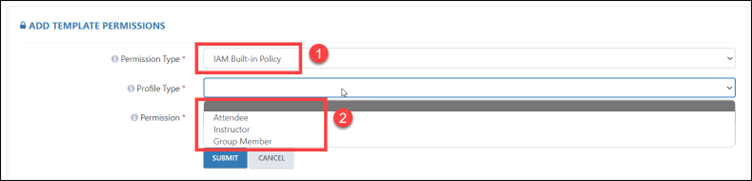
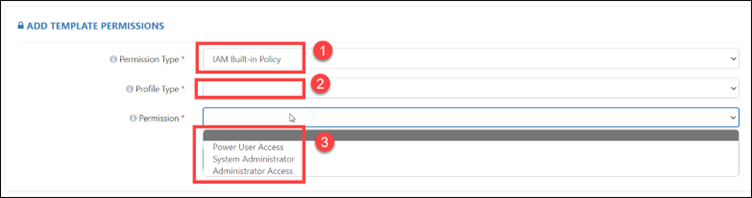
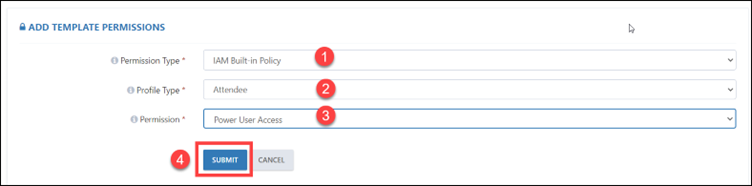
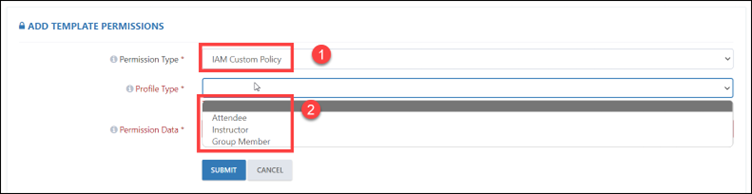
Step 8: As per the requirement, if you are selecting IAM Built-in Policy, you need to select the profile type like Attendee, Instructor, and Group Member. After that you need to select the permission, you want to assign.
There are three different types of permissions - Power User Access, System Administrator, and Administrator Access.

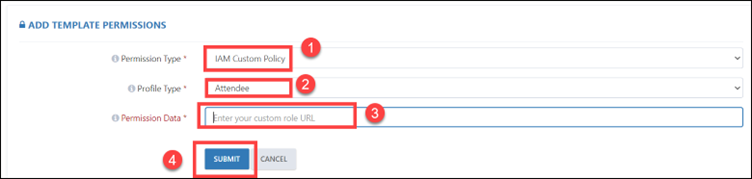
Step 9: An alternative option is to choose the IAM Custom Policy. Subsequently, you must choose the profile type, and in the profile data section, input the URL for the IAM Custom Policy. Specifically, you will need to enter the S3 bucket URL associated with that custom policy.
Step 10: You can also select IAM Instructor Access. Here, the profile type and permission will be selected automatically.
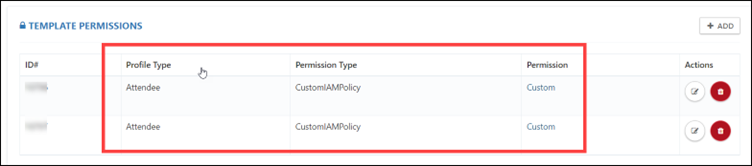
Step 11: After applying the policies, the template will permissions appear as below.
Conclusion:
AWS policies are used to define permissions and restrict access to AWS resources, such as EC2 instances, S3 buckets, and RDS database so only authorized users have access to cloud resources and that access is limited to the required level of permissions.
By using a combination of AWS policies and IAM roles, one can effectively restrict access to cloud environments and ensure the security of cloud resources.
In this blog post, we have covered the basics of AWS policies and IAM roles, their benefits, and provided a step-by-step guide on how to set them up to restrict access in the CloudLabs portal. By following these best practices, organizations can ensure that their cloud environments remain protected.